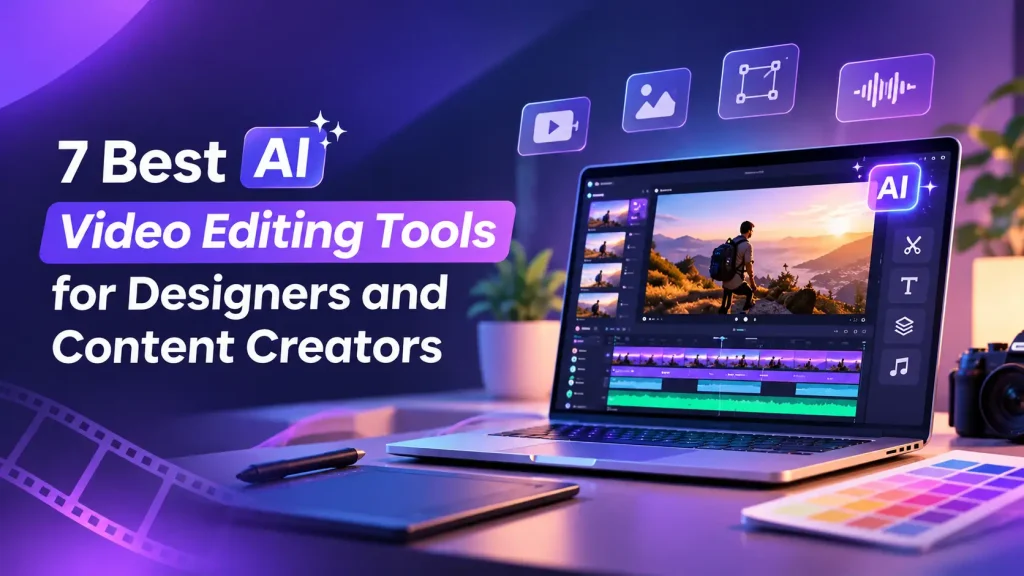
Creating videos often involves more than arranging clips. Designers and content creators work with product images, motion graphics, animated backgrounds, text, music, and other visual elements to produce content that looks consistent and engaging.
AI video editing tools are making this process easier by helping creators organize footage, prepare rough cuts, apply effects, and refine videos without handling every adjustment manually.
Some tools offer professional timelines and detailed editing controls, while others focus on AI-generated visuals, captions, or quick social media content. The right choice depends on your creative needs and the level of control you want.
Here are seven AI video editing tools worth exploring for marketing videos, product showcases, tutorials, and creative projects.
Key Takeaways
- Invideo Editor and Adobe Premiere combine AI editing capabilities with timeline controls for arranging footage, animations, and visual effects.
- DaVinci Resolve is useful for color grading and motion graphics, while CapCut and VEED make social media editing more accessible.
- Descript simplifies editing videos with spoken content, while Runway helps creators generate and transform visuals using AI.
1. Invideo Editor
Invideo Editor is a browser-based professional video editor that combines an editable timeline with AI editing agents. It helps creators review raw footage, identify useful takes, remove repeated sections, and assemble an initial cut. Its AI-powered rough cut editing capabilities make it easier to organize footage into a structured first draft that creators can refine.
Beyond basic editing, Invideo Editor supports keyframe animation, animated text, transitions, visual effects, color grading, and audio adjustments. Designers can work with multiple layers, control the timing of visual elements, and create motion graphics that fit their creative direction.
Its AI editing agents can also handle supported editing tasks through natural-language instructions. Since the changes remain on an editable timeline, creators can review the results, adjust individual clips, and continue editing manually.
A designer preparing a product showcase can combine recorded footage, animated graphics, and music, then refine the pacing, transitions, and visual effects before exporting.
Best for: Designers and content creators who want AI-powered editing, motion graphics, and professional timeline controls in one browser-based workspace.
2. Adobe Premiere
Adobe Premiere is a professional video editing application used for commercials, marketing videos, documentaries, and creative projects. Its multitrack timeline allows creators to arrange footage, add effects, work with animated titles, and make detailed adjustments.
AI-powered features assist with tasks such as masking and extending video clips. Designers can also bring in graphics and animations from Photoshop and After Effects to create visually detailed projects.
A creative team preparing a product advertisement can combine product shots, animated graphics, and music while adjusting transitions and pacing throughout the video.
Best for: Professional editors and designers who need detailed editing controls and regularly work with Adobe applications.
3. DaVinci Resolve
DaVinci Resolve provides professional editing tools alongside advanced color correction, visual effects, and audio controls. Creators can arrange footage, refine colors, add transitions, and manage sound within one application.
Its Fusion workspace supports motion graphics, animated titles, and layered visual effects. The Studio version also includes AI-powered features that assist with selected tracking, masking, and editing tasks.
For designers creating brand films or product videos, DaVinci Resolve offers detailed control over colors, lighting, animation, and overall visual consistency.
Best for: Designers and video editors who want advanced color grading, motion graphics, and post-production controls.
4. CapCut
CapCut is widely used for creating social media videos, tutorials, and promotional clips. Its editing features allow creators to trim footage, arrange clips, add transitions, and work with animated text and visual effects.
AI-powered tools can assist with captions, background removal, and selected editing tasks. Creators can also choose from ready-made templates to prepare videos for different platforms.
A designer working on Instagram Reels or TikTok videos can combine product images, short recordings, text animations, and music to produce engaging content.
Best for: Social media creators and designers who want simple editing tools for short promotional videos.
5. Descript
Descript approaches video editing through transcripts. After transcribing a recording, users can edit sections of the video by changing the corresponding text, making it easier to organize spoken content.
Its AI features help with audio cleanup, filler-word removal, caption generation, and creating shorter clips from longer recordings. Creators can also add supporting footage, graphics, and visual elements.
For a designer preparing a product tutorial or educational video, Descript can help organize the narration before adding screen recordings and graphics.
Best for: Educators, podcasters, and content creators working with tutorials, presentations, interviews, and other dialogue-heavy videos.
6. Runway
Runway focuses on AI-powered video creation and visual effects. Its tools allow creators to generate scenes from text prompts and visual references, transform footage, and experiment with different styles.
Designers can create moving backgrounds, concept shots, and supporting visuals for marketing campaigns. These generated clips can then become part of a larger video project.
A designer creating a brand advertisement might generate an atmospheric background or additional visual scene before combining it with product footage, text, and other creative assets.
Best for: Designers and creative teams exploring AI-generated footage, visual effects, and experimental video concepts.
7. VEED
VEED is an online video editor that helps creators trim footage, add text, generate subtitles, and prepare videos for different formats.
Its AI-powered features support automatic captions, subtitle translation, and selected video creation tasks. Creators can also work with branded elements and visual layouts to keep their content consistent.
A marketing team preparing a product announcement can combine recorded footage with text overlays, supporting visuals, and captions before adjusting the finished video for different platforms.
Best for: Marketing teams, educators, and creators producing branded videos, tutorials, and social media content.
How to Choose the Right AI Video Editing Tool
Choosing an AI video editor depends on the type of content you create and the editing controls your projects require.
For professional editing and motion graphics: Tools with detailed timelines, keyframe animation, transitions, and manual controls are useful when combining footage with creative design assets.
For social media videos: Editors with captions, templates, text animations, and quick formatting tools can simplify short-form production.
For tutorials and spoken content: Transcript-based editing helps creators organize narration and remove unnecessary sections before adding supporting visuals.
For AI-generated visuals: Prompt-based video generation tools can help produce creative scenes, moving backgrounds, and additional footage.
Designers working with 3D objects and animated backgrounds should also check whether their editor supports the exported image and video formats they plan to use.
Tips for Using AI Video Editing Tools in Design Projects
A clear creative direction makes video editing easier, even when AI tools handle parts of the work.
Start by organizing the footage, images, animations, and audio needed for the project. Keeping these materials ready helps maintain a consistent visual style throughout the video.
AI editing features can assist with selecting clips, preparing initial cuts, generating captions, and making supported adjustments. Creators can then review the sequence and refine its pacing, transitions, and visual appearance.
When combining 3D assets with recorded footage, pay attention to color, lighting, and movement so the different elements feel like part of the same video.
The aim is to create a clear and engaging result where each visual supports the video’s message.
Final Thoughts
AI video editing tools give designers and content creators more flexibility when producing marketing videos, tutorials, product showcases, and creative content.
Some offer detailed editing timelines, while others focus on social media videos, spoken-content editing, or generating new visuals.
Choosing the right tool comes down to your creative needs, the assets you work with, and how much control you want over the finished video. Combining AI assistance with thoughtful editing can help turn creative ideas into polished content.
Frequently Asked Questions
Which AI video editing tool is best for designers?
The best choice depends on the project. Designers working with animations and complex visual elements may prefer tools with detailed timelines and keyframe controls, while social media creators may find simpler online editors more convenient.
Can AI video editors work with 3D design assets?
Many video editors support rendered images, animations, and video files exported from 3D design software. Support for native editable 3D files varies between applications.
Can AI help create motion graphics?
Yes. AI tools can help generate visuals, support animation tasks, and apply effects. Designers can then refine movement, timing, and visual appearance through available editing controls.
Do AI video editing tools replace manual editing?
AI tools can help with repetitive tasks, initial cuts, and selected editing adjustments. Manual editing remains useful for refining pacing, colors, sound, and the final creative direction.