SPECIAL OFFER ✦ BUY 2 GET 1 FREE! ✦ ADD 3 PRODUCTS TO YOUR CART, AND THE DISCOUNT APPLIES AUTOMATICALLY!
SPECIAL OFFER ✦ BUY 2 GET 1 FREE! ✦ ADD 3 PRODUCTS TO YOUR CART, AND THE DISCOUNT APPLIES AUTOMATICALLY!
SPECIAL OFFER ✦ BUY 2 GET 1 FREE! ✦ ADD 3 PRODUCTS TO YOUR CART, AND THE DISCOUNT APPLIES AUTOMATICALLY!
SPECIAL OFFER ✦ BUY 2 GET 1 FREE! ✦ ADD 3 PRODUCTS TO YOUR CART, AND THE DISCOUNT APPLIES AUTOMATICALLY!
Among photographers and graphic designers, the GIMP vs Photoshop debate is one of the most common topics in their workflow discussions. As two of the most widely used graphic design tools, the question of which one is better continues to spark comparisons in the creative community.
In this article, we’ll explore the key differences between the two so you can decide which software fits your needs best.
Key Takeaways:
The GIMP vs Photoshop debate mainly comes down to price, features, and workflow needs, with GIMP being free and Photoshop subscription-based.
Photoshop provides stronger AI tools, better file compatibility, and more advanced layer controls, making it ideal for professional projects.
GIMP is a reliable, budget-friendly choice with growing features and community support, especially suited for beginners and casual creators.
Brief Overview of GIMP vs Photoshop
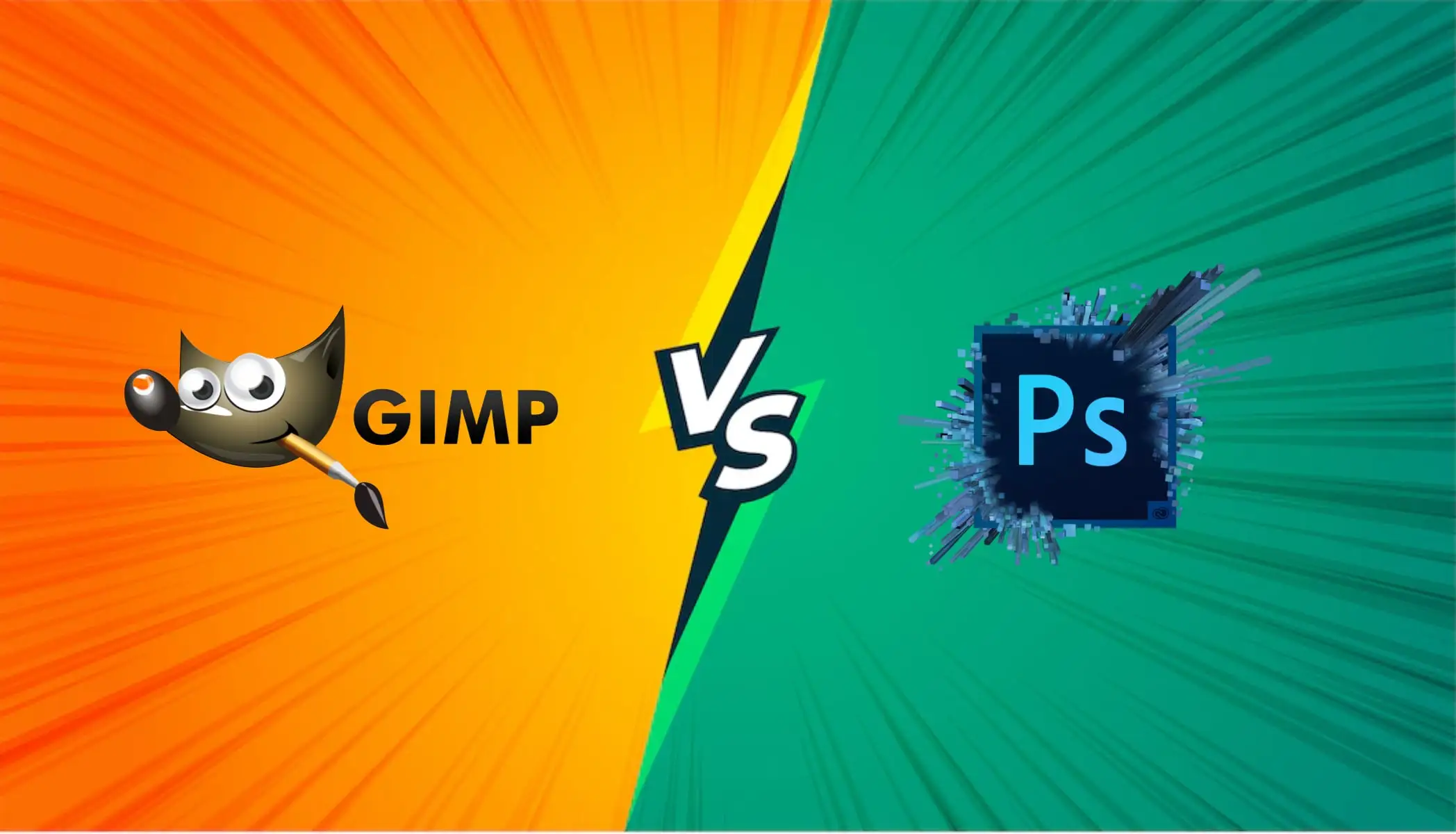
GIMP and Photoshop (Source: Windows Report)
To understand the strengths of GIMP compared to Photoshop and vice versa, it helps to know what each platform offers.
GIMP, or GNU Image Manipulation Program, is a free, open-source raster editor that has supported creators for more than 20 years. It runs on Windows, macOS, and Linux, and recent updates, GIMP 3.0, introduced non-destructive editing and improved color management.
In contrast, Photoshop is Adobe’s flagship subscription-based image editor and a long-time standard in professional work. With tools like generative AI powered by Adobe Firefly, it delivers advanced capabilities for object removal, background creation, and high-level retouching.
With the basics covered, the next question is “how does GIMP compare to Photoshop?” Check out the key differences below to find out.
1. Pricing Model: Free Versus Subscription
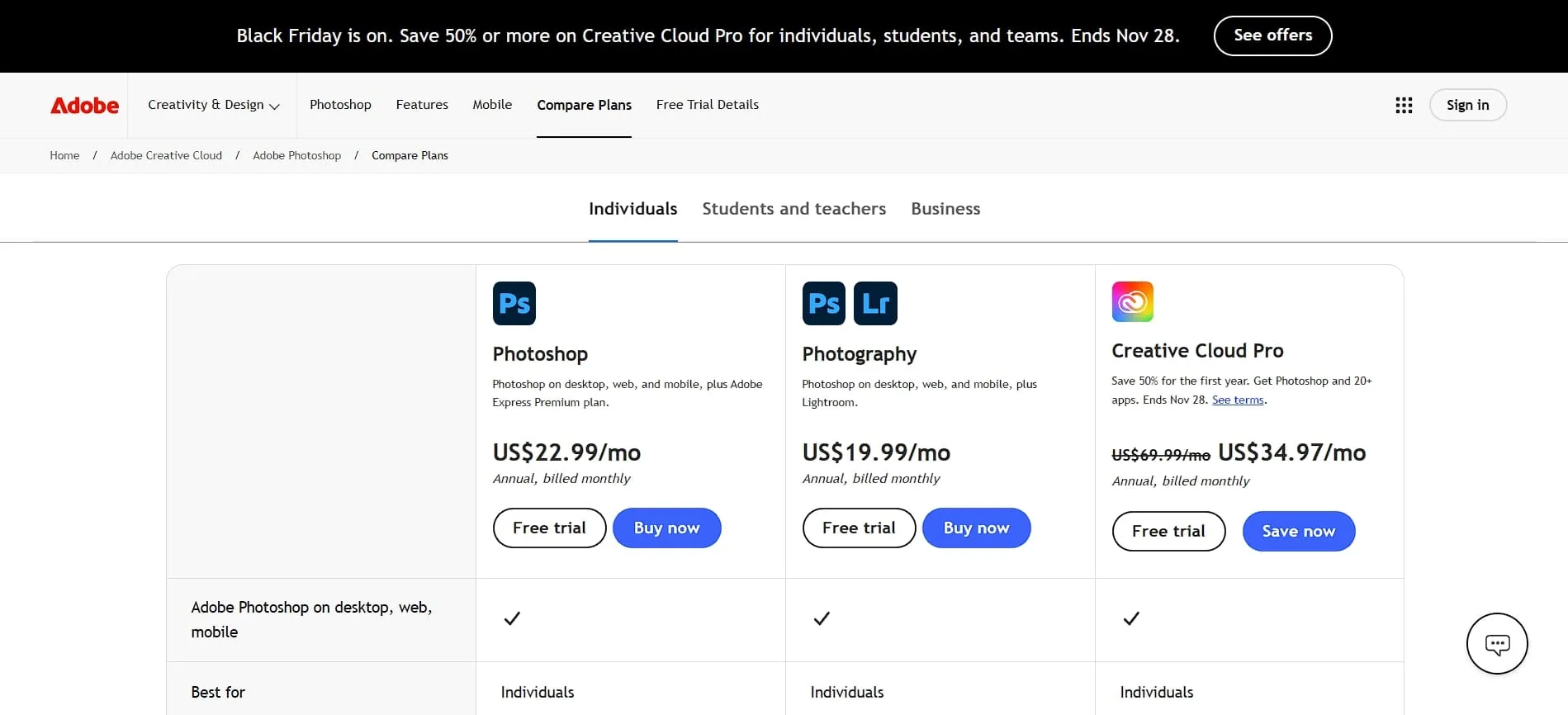
Adobe’s subscription plans (Source: Adobe)
GIMP is completely free to download and use without any time limits, making it accessible to anyone.
Photoshop, on the other hand, requires a subscription. The Photography Plan, which includes Photoshop and Lightroom, costs $19.99 per month when billed annually. A standalone Photoshop plan is also available at $22.99 per month with a yearly commitment, which can be a barrier for budget-conscious users.
2. AI-Powered Features
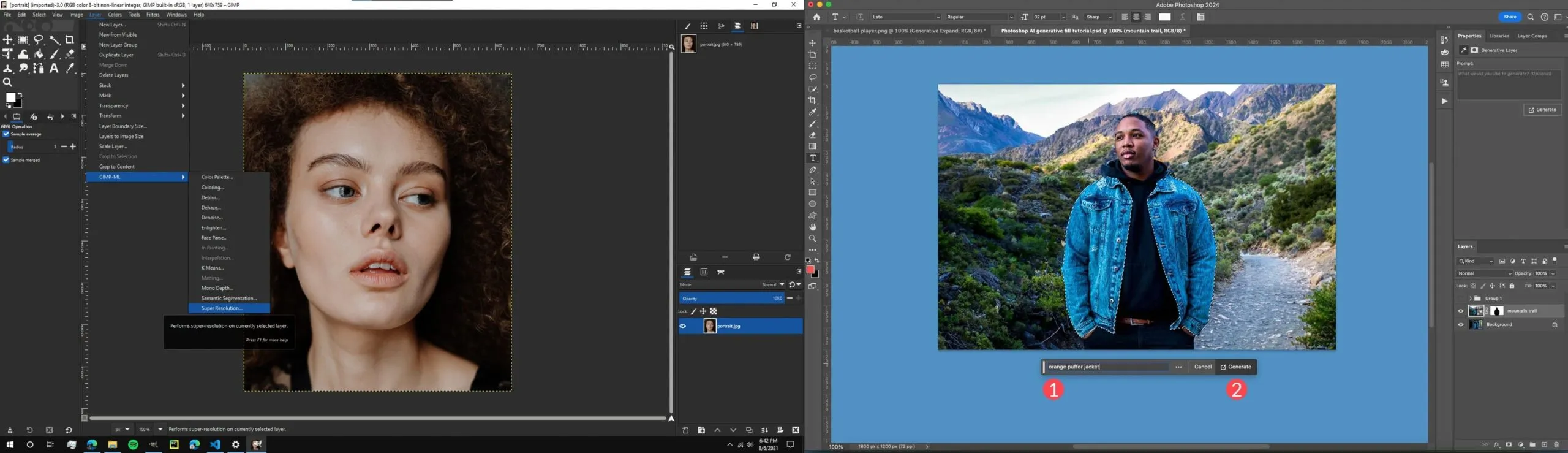
Implementation of AI tools in GIMP and Photoshop (Source: Github and Teknologi)
Photoshop’s latest updates bring powerful generative AI tools that change how people edit images. For example, the Generative Fill can remove objects, expand scenes, create backgrounds from text, and even swap other elements. If the result needs refinement, the Generate Similar option produces quick variations to choose from.
In comparison, GIMP does not offer built-in AI, and while plugins help, they are nowhere near Adobe’s Firefly engine. Because of this gap, professionals working on advanced retouching or complex creative projects often prefer Photoshop for its stronger AI support.
3. Layer Capabilities and Non-Destructive Editing
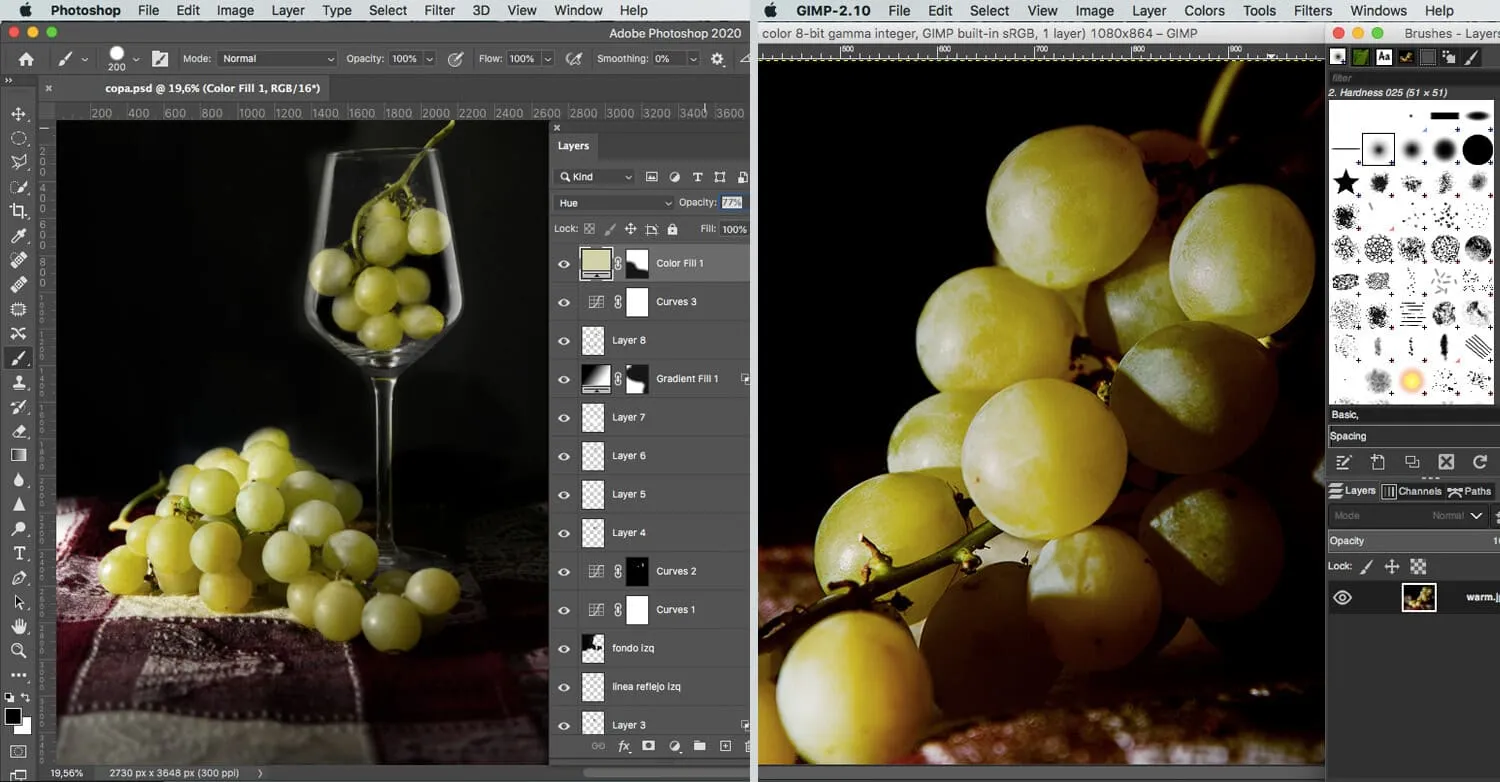
Layer capabilities in both platforms (Source: Digital Photography School)
Both editors use layers, but they handle them differently. GIMP 3.0 now supports non-destructive editing through filter layers, letting you tweak adjustments without touching the original pixels. Even so, its layer system is still simpler than Photoshop’s.
On the other hand, Photoshop offers smart objects, adjustment layers, layer masks, blend modes, clipping masks, and stronger organization tools that many professionals rely on.
4. File Format Support and Compatibility
One considerable difference between GIMP and Photoshop is their ability to handle file formats. Photoshop supports a wide range of formats, including RAW files, layered PSDs, and CMYK for professional printing.
GIMP works well with common formats, like PNG, JPEG, and TIFF, but may struggle with complex PSDs, and only recently introduced basic CMYK support.
If you frequently edit RAW photos, collaborate using PSD files, or prepare print-ready projects, Photoshop’s broader compatibility is generally the more reliable choice.
5. User Interface and Learning Curve
When it comes to UI and learning curve, GIMP now has cleaner menus and sharper icons in its latest update, thanks to GTK3’s capabilities. As a result, GIMP stays friendly for beginners who want to learn more about graphic design.
Photoshop, on the other hand, has a busier interface full of advanced features, so it takes longer to learn but offers strong professional organization once you do.
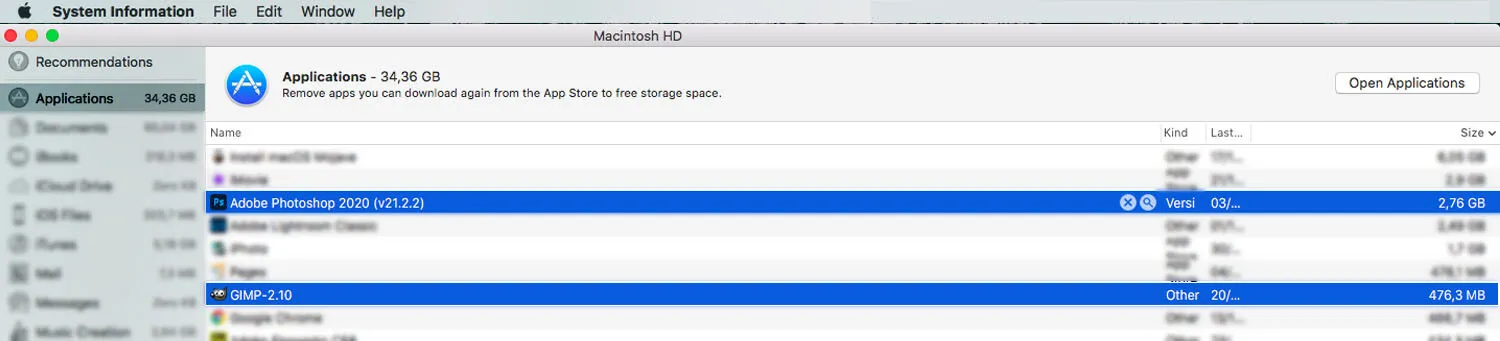
System requirement differences between GIMP and Photoshop (Source: Digital Photography School)
GIMP runs well on older or lower-spec computers, so it’s a practical choice for users with limited budgets or outdated systems. Meanwhile, you need some high-end modern hardware to handle Photoshop, as Adobe recommends at least 16 GB of RAM for smooth performance.
Overall, you need a lot of system resources to use Photoshop in handling large files, many layers, and real-time previews. While GIMP can handle similar tasks, it may be slower, even with the multi-threading improvements in GIMP 3.0.
7. Plugin and Extension Ecosystem
A hotly debated aspect in the GIMP vs Photoshop debate is the availability of plugins and extension ecosystem in both platforms.
Photoshop has a massive library of third-party plugins that expand its tools for retouching, color grading, automation, and creative effects. This results in many professionals relying on these plugins to speed up specific tasks and refine their workflow.
Compared to Photoshop, users can also use plugins in GIMP, although the selection is smaller and updated less often. As a result, GIMP users frequently pair it with other programs like Darktable for RAW editing or G’MIC for advanced filters.
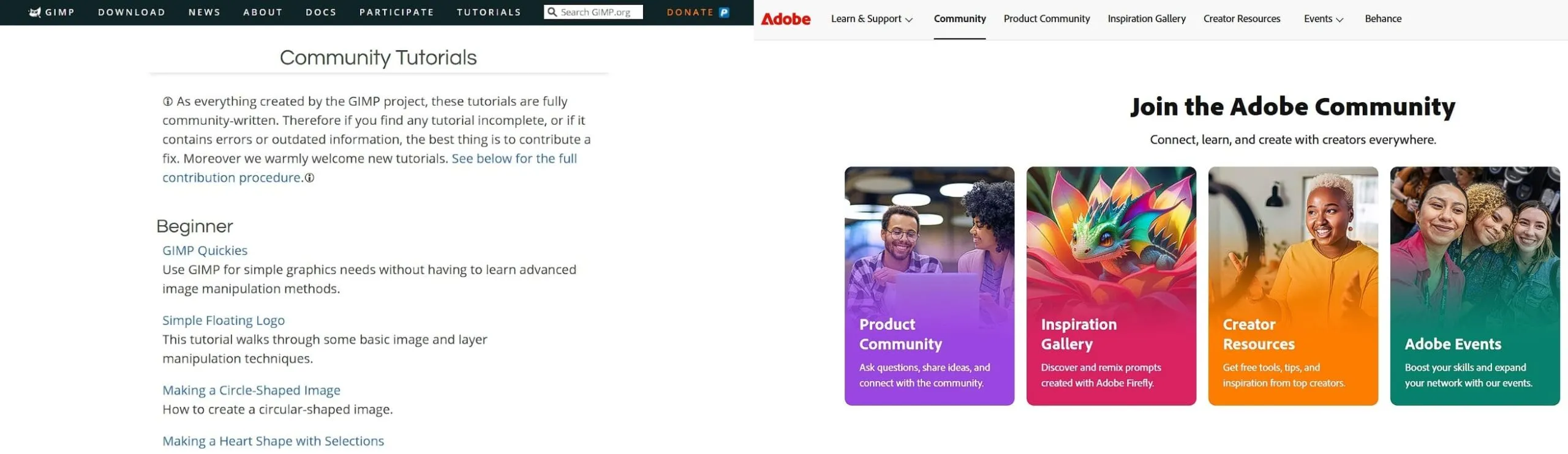
Community support in GIMP and Photoshop (Source: GIMP and Adobe)
Photoshop has decades of guides, video tutorials, and professional courses, so learning it is easy no matter your skill level. Such resources are made possible thanks to Adobe’s official documentation and continuous contributions from experts.
Meanwhile, GIMP has fewer learning materials (especially for advanced work) since it depends on the community’s regular contribution, even though the community is active and supportive.
Complement the Best Design Software with the Suitable Resources!
In the end, the GIMP vs Photoshop debate comes down to your needs, workflow, and budget. Photoshop excels in advanced features and seamless integration, while GIMP remains a strong, free alternative for users who want capable editing tools without the subscription cost.
No matter which one you choose, high-quality assets like those from Tridimensi still make a difference! Well-designed resources can elevate any graphic design project and give both GIMP and Photoshop users the depth, realism, and visual impact needed to bring ideas to life.