SPECIAL OFFER ✦ BUY 2 GET 1 FREE! ✦ ADD 3 PRODUCTS TO YOUR CART, AND THE DISCOUNT APPLIES AUTOMATICALLY!
SPECIAL OFFER ✦ BUY 2 GET 1 FREE! ✦ ADD 3 PRODUCTS TO YOUR CART, AND THE DISCOUNT APPLIES AUTOMATICALLY!
SPECIAL OFFER ✦ BUY 2 GET 1 FREE! ✦ ADD 3 PRODUCTS TO YOUR CART, AND THE DISCOUNT APPLIES AUTOMATICALLY!
SPECIAL OFFER ✦ BUY 2 GET 1 FREE! ✦ ADD 3 PRODUCTS TO YOUR CART, AND THE DISCOUNT APPLIES AUTOMATICALLY!
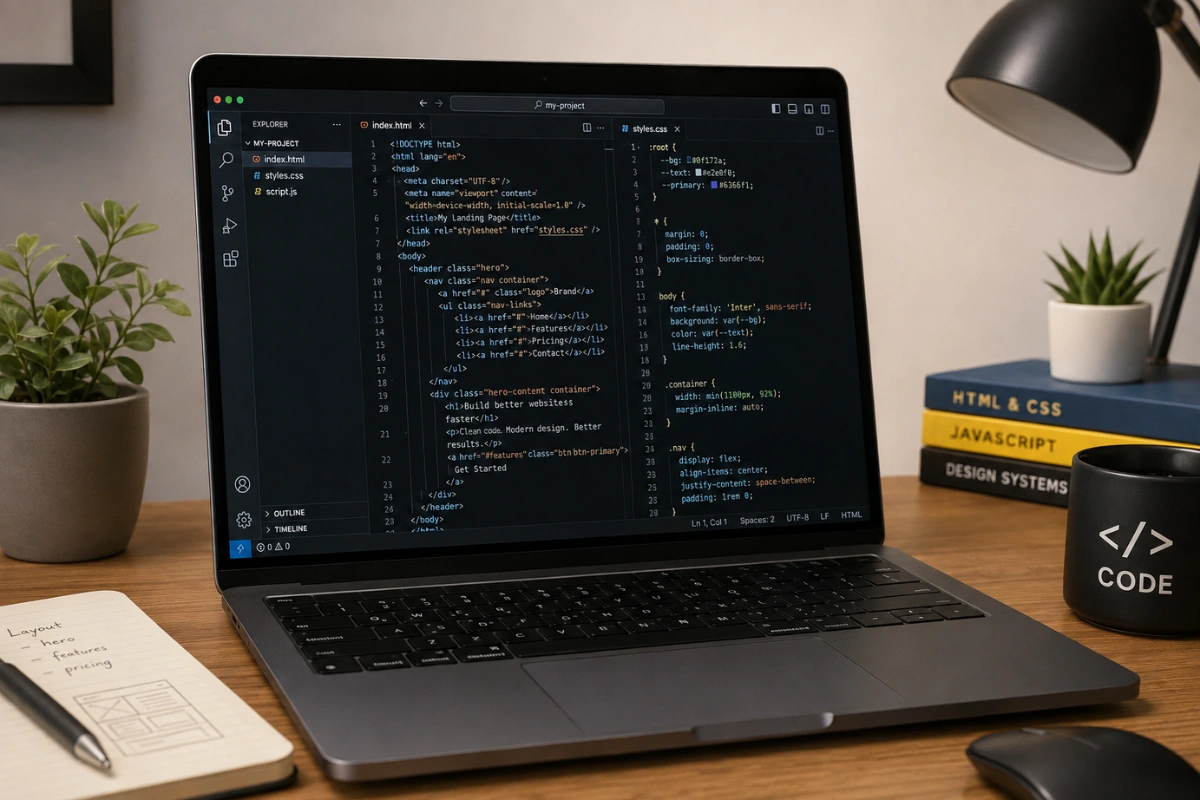
Best coding editors show up constantly in searches from designers who suddenly need to build, not just design, a website. The right editor should feel approachable, not intimidating, while still supporting the HTML, CSS, and JavaScript most design-to-code projects actually need.
Below are 10 code editors worth trying in 2026, picked with that exact transition in mind.
Key Takeaways:
The best coding editor depends on your workflow. VS Code and Cursor are ideal for daily development, while CodePen, Sublime Text, and Notepad++ are great for quick edits and lightweight projects.
AI-powered editors make learning easier. Tools like Cursor and Windsurf help designers transition into coding with built-in AI assistance, code explanations, and multi-file editing.
Start simple and switch later if needed. Most modern editors support HTML, CSS, and JavaScript with similar shortcuts and extensions, making it easy to try different tools as your skills grow.
1. Visual Studio Code
VS Code is free, runs on every major platform, and easy to get.
Visual Studio Code, or VS Code, is the most widely used of all modern code editors, and for good reason. It’s free, runs on every major platform, and its extension marketplace covers everything from live preview to design-friendly color pickers.
Most tutorials and courses assume you’re using it, which makes troubleshooting far easier when you get stuck.
Massive extension library for HTML, CSS, and JavaScript
Built-in Git integration for version control
Huge community, so answers to problems are easy to find
2. Cursor
Cursor is an AI-native editor built on top of VS Code, designed for people who want an assistant that can write and explain code alongside them
Cursor is an AI-native editor built on top of VS Code, designed for people who want an assistant that can write and explain code alongside them. Its inline AI chat makes it especially useful for designers translating a Figma file into working markup, since you can ask it to explain unfamiliar code as you go.
Because it shares VS Code’s foundation, switching between the two feels seamless if you ever need to.
AI-assisted editing and multi-file changes
Familiar VS Code layout and extension support
Strong fit for beginners who want guidance while learning
3. Zed
Zed is a newer, high-performance editor built for speed and a clean, modern interface.
Zed is a newer, high-performance editor built for speed and a clean, modern interface. It’s a good pick for designers who care about visual polish in their own tools, not just the sites they’re building, since Zed’s interface feels deliberately minimal.
Very fast startup and responsiveness
Built-in collaborative editing
Growing extension ecosystem, though still smaller than VS Code’s
4. Sublime Text
Sublime Text is fast, with a distraction-free interface.
Sublime Text has been a favorite among web designers for over a decade, prized for its speed and distraction-free interface. It opens large files instantly and offers powerful multi-cursor editing, which is handy when adjusting repeated CSS classes across a stylesheet.
Extremely fast, native performance
Multi-cursor editing for quick bulk changes
Minimal, focused interface with few distractions
5. WebStorm
WebStorm is a full JavaScript-focused IDE from JetBrains
WebStorm is a full JavaScript-focused IDE from JetBrains, built for people who eventually want deeper tooling than a lightweight editor offers. It includes advanced refactoring, built-in debugging, and framework-aware autocomplete for React, Vue, and similar libraries.
It’s a heavier tool than most designers need at first, but it scales well once a personal project grows into something bigger.
Deep JavaScript and TypeScript tooling
Built-in debugger and testing tools
Best suited to larger, ongoing projects rather than one-off pages
6. CodePen
CodePen is a browser-based editor built specifically for quick HTML, CSS, and JavaScript experiments
CodePen is a browser-based editor built specifically for quick HTML, CSS, and JavaScript experiments. Designers often use it to test a single component or animation idea without setting up a full project, then copy the working code into a bigger site.
No installation required, works entirely in the browser
Instant live preview as you type
Huge public library of examples to learn from
7. Windsurf
Take your coding workflow beyond simple autocomplete. Windsurf plans, builds, and executes larger multi-step tasks seamlessly.
Windsurf is another AI-native editor that has grown quickly as an alternative to Cursor, focused on agentic, multi-step coding tasks. It’s worth trying if you want an AI assistant that can plan and execute larger changes, not just autocomplete single lines.
Agent mode for multi-file, multi-step tasks
Familiar editor layout for a smooth transition
Actively updated, with frequent new AI features
8. Replit
Replit lets you take a project from idea to a live link directly in your browser without ever touching a terminal.
Replit runs entirely in the browser and includes hosting, so a project can go from idea to live link without ever touching a terminal. This makes it one of the easiest best code editors for web development when you just want to test a small site publicly and share the link right away.
Zero local setup, runs fully in the browser
Built-in hosting for instant sharing
Good for collaborative, real-time pair coding
9. Notepad++
Notepad++ stays unbeatable for quick HTML and CSS tweaks simply because it opens instantly and gets right out of your way.
Notepad++ is a lightweight, Windows-only editor that has stayed popular for one simple reason: it opens instantly and gets out of your way. It won’t compete with VS Code on features, but for quick HTML or CSS tweaks, it’s hard to beat on speed.
Extremely lightweight and fast to open
Simple syntax highlighting for common languages
Great entry point for absolute beginners
10. GitHub Codespaces
GitHub Codespaces delivers a full VS Code environment directly in your browser, fully integrated with your GitHub repository
GitHub Codespaces gives you a full cloud-based development environment, essentially VS Code running in the browser but connected directly to a GitHub repository. For a designer contributing occasional fixes to a team’s codebase, it avoids the need to set up a local environment at all.
Full VS Code experience without local installation
Directly connected to GitHub repositories
Useful for occasional contributors who don’t code daily
So, which editor is best for coding? It really depends on how often you’ll use it and what you’re building.
A designer making occasional landing page tweaks is usually better off with something lightweight like Sublime Text or CodePen, while someone coding daily will get more long-term value from VS Code or Cursor.
There’s no wrong answer here; the best code editor 2026 for you is simply the one that doesn’t get in the way of finishing the project.
It’s also worth remembering that switching editors later isn’t a big commitment. Most of these tools share similar keyboard shortcuts and extension ecosystems, so trying two or three before settling on a daily driver costs little more than an afternoon.
Final Thoughts
Best coding editors aren’t one-size-fits-all, and the right choice usually comes down to how often you code and how much guidance you want along the way. Start with a free, well-supported option like VS Code or Cursor, then branch out to a lighter tool once you know your own workflow.
When your project is coded and ready for visual polish, explore Tridimensi’s Unlimited Access for unlimited downloads of 3D assets built for landing pages, campaigns, and presentations.