SPECIAL OFFER ✦ BUY 2 GET 1 FREE! ✦ ADD 3 PRODUCTS TO YOUR CART, AND THE DISCOUNT APPLIES AUTOMATICALLY!
SPECIAL OFFER ✦ BUY 2 GET 1 FREE! ✦ ADD 3 PRODUCTS TO YOUR CART, AND THE DISCOUNT APPLIES AUTOMATICALLY!
SPECIAL OFFER ✦ BUY 2 GET 1 FREE! ✦ ADD 3 PRODUCTS TO YOUR CART, AND THE DISCOUNT APPLIES AUTOMATICALLY!
SPECIAL OFFER ✦ BUY 2 GET 1 FREE! ✦ ADD 3 PRODUCTS TO YOUR CART, AND THE DISCOUNT APPLIES AUTOMATICALLY!
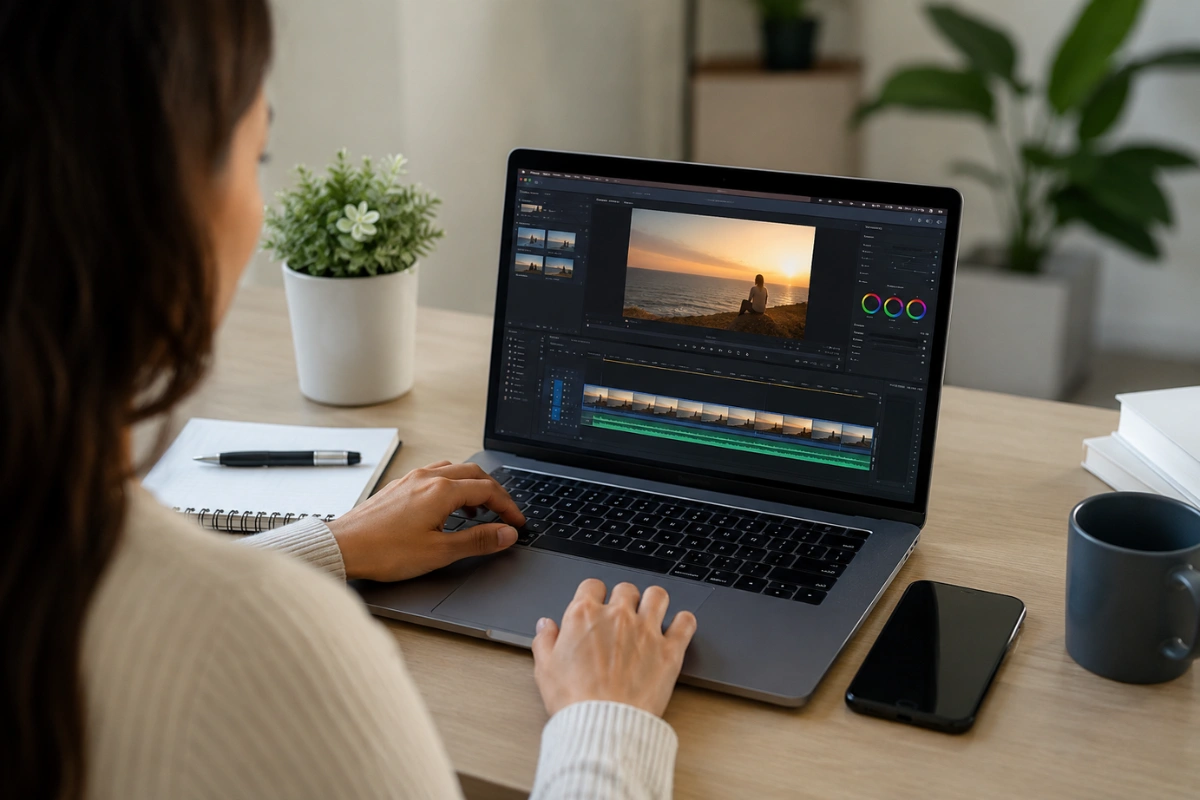
Want to add captions, titles, or subtitles to your videos without installing editing software? Learning how to add text to a video online is easier than ever. Many modern video editors run directly in your browser, allowing you to upload a video, add text, and export the finished result in just a few minutes.
Whether you’re creating content for social media, tutorials, product demos, or presentations, text overlays help viewers follow along and make your videos more engaging.
Why Add Text to a Video?
Adding text to your videos ensures your message still lands, even when the sound is off.
Adding text improves both readability and accessibility, especially since many people watch videos with the sound muted. Text overlays can also highlight important information, reinforce key messages, and create a more polished viewing experience.
Some of the main benefits include:
Making videos easier to understand without audio
Highlighting important points or product features
Improving accessibility with captions or subtitles
Increasing engagement on social media
Giving videos a more professional appearance
How to Add Text to Video Free
A step-by-step walkthrough for adding text overlays to videos using free online editors like Canva or CapCut Web.
Most online video editors follow a similar workflow, whether you’re using Canva, CapCut Web, Clipchamp, Kapwing, or another browser-based editor. Many browser-based editors let you write text on video online free, without watermarks or hidden subscription traps.
Step 1: Open an Online Video Editor
Choose an online editor that supports text overlays, then open it in your web browser. Most platforms don’t require any software installation.
Step 2: Upload Your Video
Import your video by clicking the upload button or dragging the file into the editor. Most online tools widely support MP4 and MOV.
Step 3: Add a Text Layer
Select the Text tool, type your caption, title, or subtitle, then place it anywhere on the video.
Step 4: Customize the Text
Adjust the font, size, color, alignment, and position so the text matches your video’s style while remaining easy to read.
Step 5: Adjust the Timing
Use the timeline to control when the text appears and disappears. This keeps captions synchronized with your video instead of displaying throughout the entire clip.
Step 6: Preview and Export
Play the video to check the timing, readability, and placement. Once everything looks correct, export the video using your preferred resolution.
How to Add Text to Video Automatically Online Free
AI-powered auto-captioning tools can transcribe spoken dialogue into text, saving hours of manual editing.
If your video contains spoken dialogue, automatic captions can save a significant amount of editing time.
Step 1: Upload Your Video
Open your preferred online editor and import the video you want to caption.
Step 2: Generate Automatic Captions
Look for features such as Auto Captions, Auto Subtitles, or Transcribe. Several online editors offer AI-powered caption generation, although availability may vary by platform or subscription plan.
Step 3: Review the Captions
AI transcription isn’t always perfect, so review the generated text and correct any spelling mistakes, punctuation, or misidentified words.
Step 4: Style the Captions
Use a readable font, choose high-contrast colors, and position the captions so they won’t obscure important elements in the video.
Step 5: Export the Video
Export the final video with captions embedded. Burned-in captions remain visible across social media platforms without requiring separate subtitle files.
Best Online Tools for Adding Text to Videos
A comparison of top online tools — including CapCut Web, Canva, Clipchamp, Kapwing, and VEED.io — for adding text and captions to videos.
If you’re creating videos regularly, using a tool built for auto add text to video workflows will save hours over time.
Here are a few reliable options worth exploring.
CapCut Web – Popular for AI captions and animated text.
Canva Video Editor – Great for presentations and branded content.
Clipchamp – Beginner-friendly with a simple editing interface.
Kapwing – Offers subtitle editing and collaborative workflows.
VEED.io – Supports automatic captions and subtitle translation.
Each platform offers a free plan, although some advanced features or export options may require a paid subscription.
Common Mistakes to Avoid When Adding Text to Videos
Avoid common pitfalls like small text, overlapping captions, and mistimed subtitles that make videos look unpolished.
Even simple text overlays can go wrong if a few basics are overlooked. Keep these common issues in mind before exporting your final video.
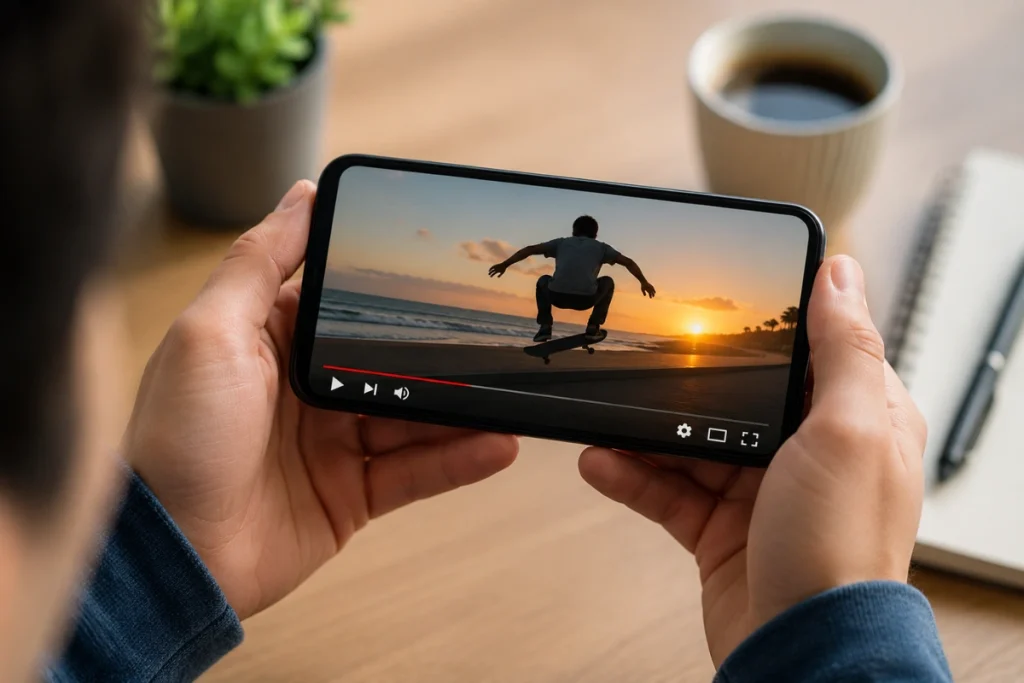
Text is too small to read on mobile. Since most viewers watch on phones, always preview your video at a smaller screen size before publishing. Increase font size if anything looks cramped or hard to read.
Captions overlap with other on-screen elements. Make sure your text doesn’t cover important visuals, logos, or faces in the frame. Reposition the text box if it blocks anything essential.
Timing feels off or delayed. Auto-generated captions sometimes lag slightly behind the spoken audio. Manually nudge the timing on the timeline until it syncs naturally.
Too much text on screen at once. Long sentences crammed into a single frame are hard to read quickly. Break longer captions into shorter phrases that appear one at a time.
Tips for Better Text Overlays
Simple tips — like high-contrast colors and short captions — can make text overlays look noticeably more professional.
A few small adjustments can make your text overlays look significantly more professional. Keep these tips handy for your next video project.
Stick to one or two fonts for a consistent look
Use high-contrast colors, so text stays readable over any background
Keep captions short, ideally under ten words per line
Add subtle animation for a more dynamic, modern feel
Match your text style to your brand’s overall visual identity
These small details are what separate amateur-looking clips from polished, professional content. Over time, they’ll become second nature as part of your editing routine.
Conclusion
Adding captions or titles no longer requires expensive software or advanced editing skills. As shown above, learning how to add text to a video online is simple, whether you type it manually or let auto-captioning tools handle the heavy lifting for you.
Once your video is edited and captioned, the next step is making sure the visuals match the quality of your message. Explore Tridimensi’s Unlimited Access for unlimited downloads of premium 3D assets with full commercial usage rights, and give your next video the polished look it deserves.