SPECIAL OFFER ✦ BUY 2 GET 1 FREE! ✦ ADD 3 PRODUCTS TO YOUR CART, AND THE DISCOUNT APPLIES AUTOMATICALLY!
SPECIAL OFFER ✦ BUY 2 GET 1 FREE! ✦ ADD 3 PRODUCTS TO YOUR CART, AND THE DISCOUNT APPLIES AUTOMATICALLY!
SPECIAL OFFER ✦ BUY 2 GET 1 FREE! ✦ ADD 3 PRODUCTS TO YOUR CART, AND THE DISCOUNT APPLIES AUTOMATICALLY!
SPECIAL OFFER ✦ BUY 2 GET 1 FREE! ✦ ADD 3 PRODUCTS TO YOUR CART, AND THE DISCOUNT APPLIES AUTOMATICALLY!
Ever opened a PDF, only to realize you need to fix a typo, add a signature, or fill in a form field right away? Learning how to edit a PDF in Chrome can save you from downloading heavy software just to make a quick change.
Chrome has quietly become one of the most convenient tools for handling PDFs. You don’t need Adobe Acrobat installed, and you don’t need to pay for anything. Whether you’re a student, a marketer, or a designer polishing a client proposal, this guide covers it all.
In this guide, we’ll walk through every practical method, from Chrome’s built-in tools to free extensions, so you can edit PDFs in seconds. Let’s get into the actual steps.
Method 1: Make Basic Edits Using Chrome’s Built-In PDF Viewer
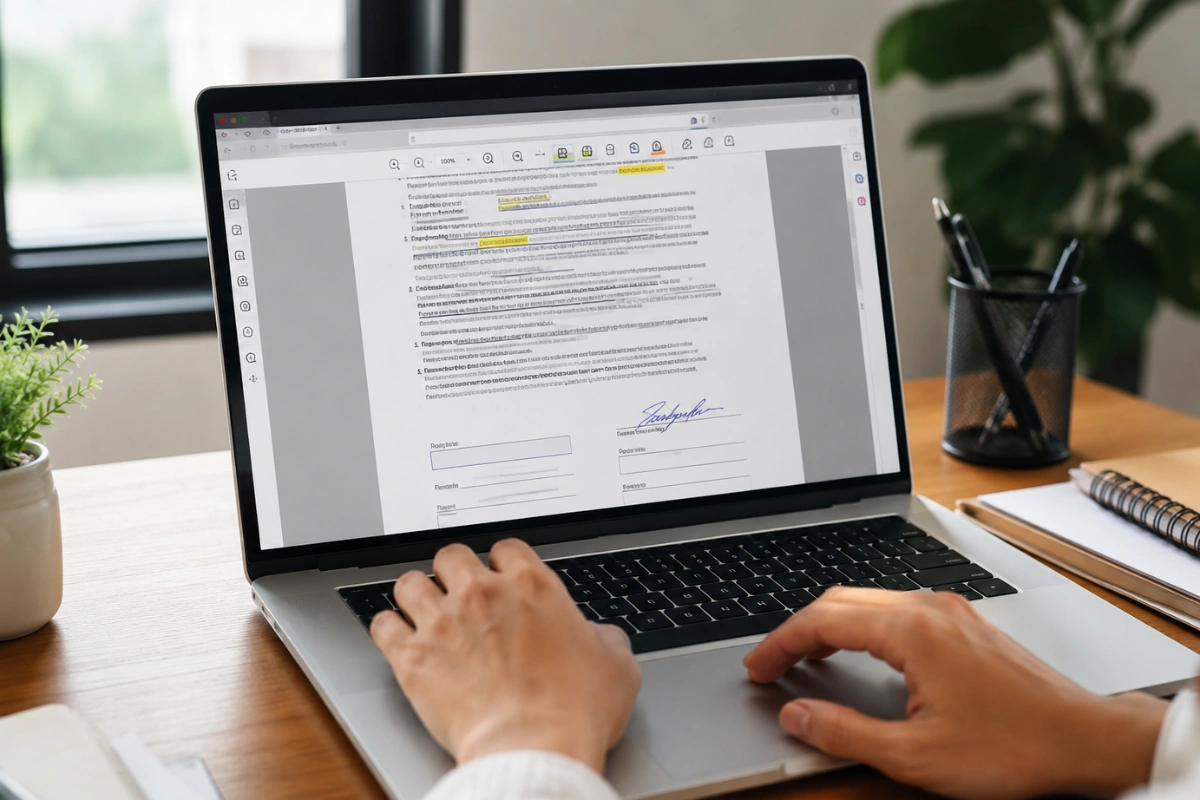
Step-by-step guide to editing a PDF using Chrome’s built-in PDF viewer, from opening the file to saving the annotated version.
Chrome includes a built-in PDF viewer that lets you review, annotate, and complete certain PDF files without installing additional software. While it isn’t a full-featured PDF editor, it’s perfect for quick changes.
1. Open the PDF in Google Chrome
Right-click your PDF and choose Open with > Google Chrome, or drag the file into a Chrome window. The document will open instantly in Chrome’s built-in viewer.
2. Access the PDF Toolbar
Move your cursor to the top-right corner of the document to display the toolbar. You’ll typically see options for zooming, printing, downloading, and rotating the PDF. Depending on your Chrome version, annotation tools may also be available.
3. Add Basic Annotations
If your version of Chrome supports markup features, click the annotation icon to highlight text, draw freehand notes, or add a handwritten signature. These tools are useful for reviewing documents or providing simple feedback.
4. Complete Fillable Forms
Chrome automatically detects interactive form fields. Simply click inside a text box, checkbox, or dropdown menu and enter the required information.
5. Save the Updated PDF
When you’re finished, click the Download button to save a copy of the PDF with your annotations or completed form fields.
Chrome’s built-in viewer is ideal for reviewing documents and making basic annotations. However, if you need to modify existing text, replace images, reorganize pages, or edit the PDF’s original layout, you’ll need a dedicated PDF editing tool.
Method 2: How Do I Edit a PDF Using Google?
Step-by-step on editing PDF files using Google
Google lets you edit many PDFs by converting them into a Google Docs file. This method works best for text-based documents and is free to use.
1. Open Google Drive
Go to Google Drive in Chrome and sign in to your Google account.
2. Upload Your PDF
Click New > File upload, then choose the PDF you want to edit.
3. Open with Google Docs
Right-click the uploaded file, select Open with > Google Docs. Google will convert the PDF into an editable document.
4. Edit the Content
Update the text, formatting, or other content as needed. Keep in mind that complex layouts, images, and tables may not convert perfectly.
5. Download as a PDF
When you’re finished, go to File > Download > PDF Document (.PDF) to save the edited version.
This method is ideal for text-heavy PDFs such as reports, letters, and resumes. Always review the downloaded file to ensure the formatting remains intact.
Method 3: Edit PDF in Chrome Free Using Extensions
Step-by-step editing PDF in Chrome free using extensions
If Chrome’s built-in PDF viewer doesn’t offer the features you need, PDF editor extensions can provide more advanced editing tools directly in your browser. Many free extensions are available through the Chrome Web Store.
1. Visit the Chrome Web Store
Open the Chrome Web Store and search for PDF editor to explore available extensions.
2. Choose a Trusted Extension
Look for an extension with high ratings, positive user reviews, and regular updates. Many free options support basic editing, e-signatures, and page management.
3. Install the Extension
Click Add to Chrome, then select Add extension to complete the installation. The extension icon will appear next to your address bar.
4. Open Your PDF
Click the extension icon and upload your PDF file. Some extensions also let you open files directly from Google Drive or by dragging and dropping them into the browser.
5. Edit the PDF
Depending on the extension, you may be able to:
Add or edit text
Insert images
Add digital signatures
Merge or split PDF files
Rearrange or delete pages
6. Download the Edited File
When you’re finished, download the updated PDF to your device. Some extensions also support saving files to cloud storage services such as Google Drive.
Before uploading sensitive documents, review the extension’s privacy policy and only use tools from trusted developers.
How to Edit a PDF in Chrome on Mobile
Step-by-step editing a PDF file on mobile
Chrome on Android and iPhone lets you open and view PDF files, but it doesn’t include built-in PDF editing tools. For editing text, you’ll need to use Google Drive and Google Docs.
1. Open the PDF
Tap the PDF file or link to open it in Chrome. Depending on your device, the file may open in your phone’s default PDF viewer instead.
2. Upload the PDF to Google Drive
Open the Google Drive app or website, upload your PDF, then select Open with > Google Docs. Google will convert the PDF into an editable document.
3. Edit and Download
Make the necessary changes in Google Docs, then download the file as a PDF by selecting File > Download > PDF Document (.PDF) when available, or use the Share & export option in the Google Docs app.
Mobile editing is best for quick updates to text-based documents. For more advanced PDF editing or preserving complex layouts, using a desktop browser and a dedicated PDF editor is the better option.
Conclusion
Editing a PDF Chrome doesn’t have to mean opening expensive software or waiting for a slow download. As shown above, knowing how to edit a PDF in Chrome gives you multiple free options, from the built-in viewer to Google Docs and browser extensions, that cover most everyday editing needs.
Once your document is edited and ready, the next step is making it look genuinely professional. If you’re building presentations, landing pages, or branded PDFs that need a visual boost, explore Tridimensi’s Unlimited Access for unlimited downloads of premium 3D assets with full commercial usage rights. It’s a simple way to make sure your content looks as sharp as it reads.